We’ve recently created a new Excel reader function, and I decided to have a play around with it. I’ve used an open dataset for this tutorial, so you can follow along too.
Using file available here -
https://www.ons.gov.uk/employmentandlabourmarket/peopleinwork/employmentandemployeetypes/datasets/la...
Before you start ensure you have the beta for Excel ingestion available in your workspace:

Then upload the file you downloaded into the volume:
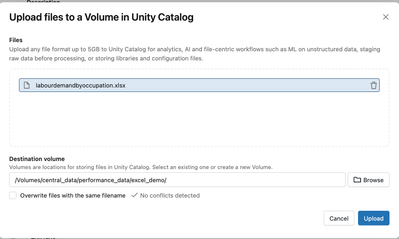
Once I’ve uploaded my file, I can simply read it into a dataframe, using the following:
df = (spark.read.excel("/Volumes/central_data/performance_data/excel_demo/labourdemandbyoccupation.xlsx"))
display(df)
However, in this case this just gives me the first sheet, so instead I want to specify a data range, to do this I can do the following:
df = (spark.read

      .option("headerRows", 1)

      .option("dataAddress", "'Table 1'!A5:DD11")

      .excel("/Volumes/central_data/performance_data/excel_demo/labourdemandbyoccupation.xlsx"))

display(df)
Now I get a nice version of the data in Table 1.
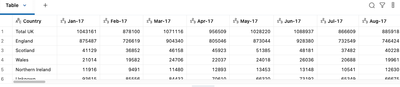
I can also do this in SQL
%sql

-- Read a specific sheet and range

CREATE TABLE central_Data.performance_data.sheet1table AS

SELECT * FROM read_files(

 "/Volumes/central_data/performance_data/excel_demo/labourdemandbyoccupation.xlsx",

 format => "excel",

 headerRows => 1,

 dataAddress => "'Table 1'!A5:DD11",

 schemaEvolutionMode => "none" )
But what if I want to loop through and return the data into tables for all sheets? Well then, I can use the sheets method to return all the names of sheets in my workbook
df = (spark.read.format("excel")

      .option("operation", "listSheets")

      .load("/Volumes/central_data/performance_data/excel_demo/labourdemandbyoccupation.xlsx"))

display(df)
I can then loop through them to import the sheets one at a time. You’ll notice I’ve excluded the ones I don’t want.
I’ve also not treated the title as a header row as it sometimes contains unallowed characters. I could import each of these and then tidy them up to rename my table.
sheet_names = [row['sheetName'] for row in df.collect()]


for sheet in sheet_names:

   if "table" in sheet.lower():

       data_df = (spark.read

                  .option("headerRows", 0)

                  .option("dataAddress", f"'{sheet}'!A5:DD5374")

                  .excel("/Volumes/central_data/performance_data/excel_demo/labourdemandbyoccupation.xlsx"))

       table_name = f"central_data.performance_data.{sheet.replace(' ', '_').lower()}"

       data_df.write.mode("overwrite").saveAsTable(table_name)
At the end I have a series of tables in my catalogue representing each table in the Excel workbook. However, now the names are messy and I have a lot of additional null rows. So to tidy this up I use the following code.
import re

from pyspark.sql.types import StructType, StructField, StringType

from pyspark.sql import functions as F


sheet_names = [row['sheetName'] for row in df.collect()]


for sheet in sheet_names:

   if "table" in sheet.lower() and sheet.lower() != "table of contents":

       table_name = f"central_data.performance_data.{sheet.replace(' ', '_').lower()}"


       # Drop the table if it exists


       raw_df = spark.table(table_name)

       first_row = raw_df.limit(1).collect()[0]

       new_columns = [clean_column_name(str(col)) for col in first_row]

       data_df = raw_df.tail(raw_df.count() - 1)


       schema = StructType([StructField(col, StringType(), True) for col in new_columns])

       data_df = spark.createDataFrame(data_df, schema=schema)

       cols_to_drop = [col for col in data_df.columns if col.lower() == "none"]

       data_df = data_df.drop(*cols_to_drop)

       non_null_df = data_df.na.drop(how="all")

       spark.sql(f"DROP TABLE IF EXISTS {table_name}")

       non_null_df.write.mode("overwrite").saveAsTable(table_name)
And there you have it, a lovely cleaned-up table:

It is also worth noting that these methods can all be used by Auto Loader, so I can use this to upload new Excel files as they arrive. I hope you’ve enjoyed this walkthrough. Let me know how you get on. Docs for the feature are available here.


