- Mark as New
- Bookmark
- Subscribe
- Mute
- Subscribe to RSS Feed
- Permalink
- Report Inappropriate Content
08-16-2022 01:36 AM
Tip #3: Use JSON cluster configurations to access your storage location
Knowledge check: How do I modify DLT settings using JSON?
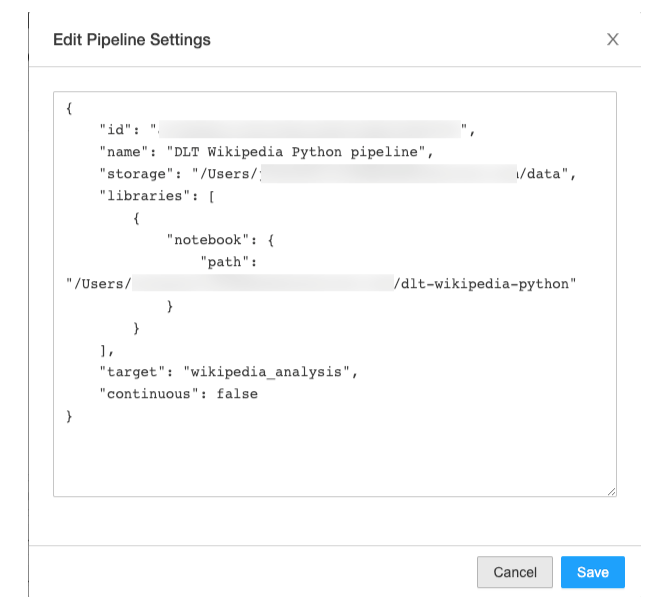
Delta Live Tables settings are expressed as JSON and can be modified in the Delta Live Tables UI [AWS] [Azure][GCP].
Example: Add an S3 instance profile to the DLT Cluster Config via JSON
 "clusters": [
        {
            "label": "default",
            "aws_attributes": {
                "instance_profile_arn": "arn:aws:..."
            },
            "autoscale": {
                "min_workers": 1,
                "max_workers": 5
            }
        }
    ]
Your next step
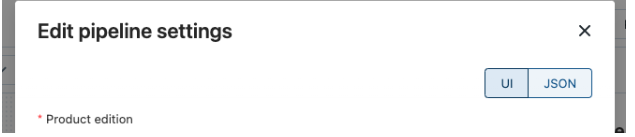
- Open the Settings for your pipeline and switch from UI to JSON.
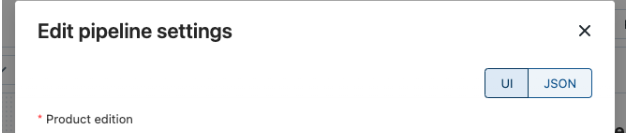
- Add your cloud storage location configuration in the “clusters”:[] section using the example above.
- If your pipeline runs on different clusters for different modes, e.g., default and maintenance clusters, be sure to add the cloud storage location details to each.
More resources
- Delta Live Tables settings [AWS] [Azure][GCP]
- Secure access to S3 buckets using instance profiles | Databricks on AWS
- If you don’t use instance profiles, you can use the following options in your pipeline notebook with Auto Loader to provide credentials to access AWS SNS and SQS when IAM roles are unavailable or when you’re ingesting data from different clouds.
- Accessing Azure Data Lake Storage Gen2 and Blob Storage with Azure Databricks - Azure Databricks | M...
- Google Cloud Storage
- With cloud storage location access details set in the JSON or the notebook used by DLT, do a ‘Full refresh all’ (see Tip #5).
Tip #4: Specify your Target database for your table(s)
Knowledge check: Why set a Target?
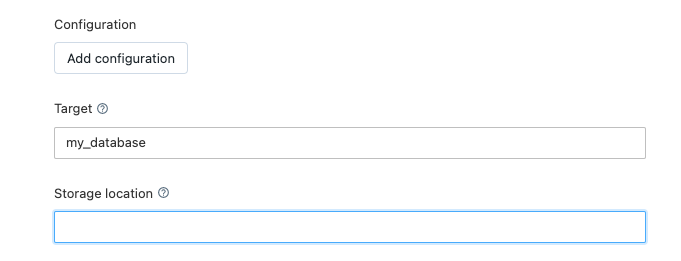
Add the Target setting to configure a database name for your tables. Setting a Target makes using your new table(s) easier after you start the pipeline. If you don’t set a Target on pipeline creation in the UI, you can go back and set a Target in the JSON.
Examples
UI to set the target for a new pipeline
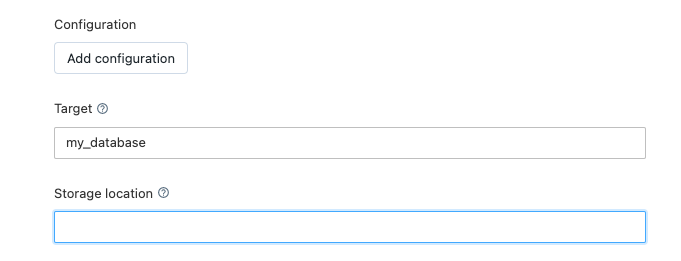
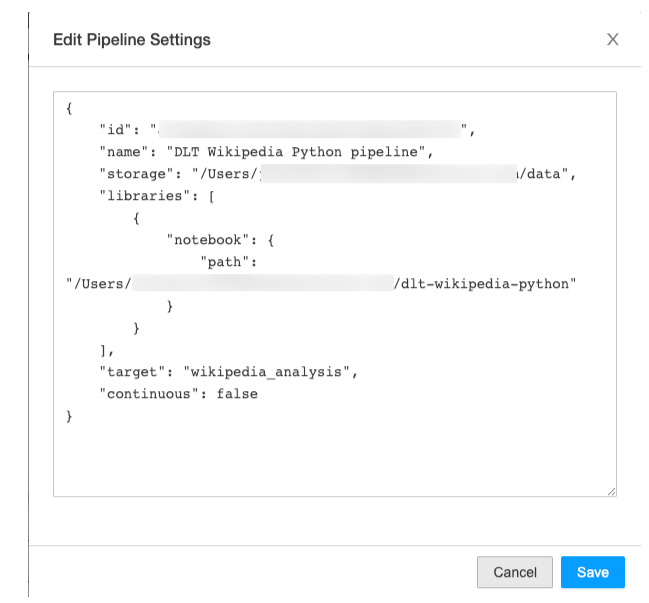
- Set a Target
- Start the Pipeline
- Create a new notebook (not your pipeline notebook) to explore the database and table(s) using your preferred language, i.e., SQL would be:
select * from my_database.table_nameMore resources
Tip #5: ‘Full refresh all’ pulls pipeline code and settings changes
Knowledge check: What are Pipeline Updates?
After you create the pipeline and are ready to run it, you start an update. An update does the following:
- Starts a cluster with the correct configuration (See Tip #3).
- Discovers all the tables and views defined, and checks for any analysis errors such as invalid column names, missing dependencies, and syntax error (See Tip #1).
- Creates or updates tables and views with the most recent data available.
Example

So, how’s your DLT + cloud storage running? Drop your questions and tips in the thread! 🧵