- Mark as New
- Bookmark
- Subscribe
- Mute
- Subscribe to RSS Feed
- Permalink
- Report Inappropriate Content
08-12-2025 05:53 AM - edited 08-12-2025 05:56 AM

- Mark as New
- Bookmark
- Subscribe
- Mute
- Subscribe to RSS Feed
- Permalink
- Report Inappropriate Content
08-12-2025 10:55 AM
HI @Datalight
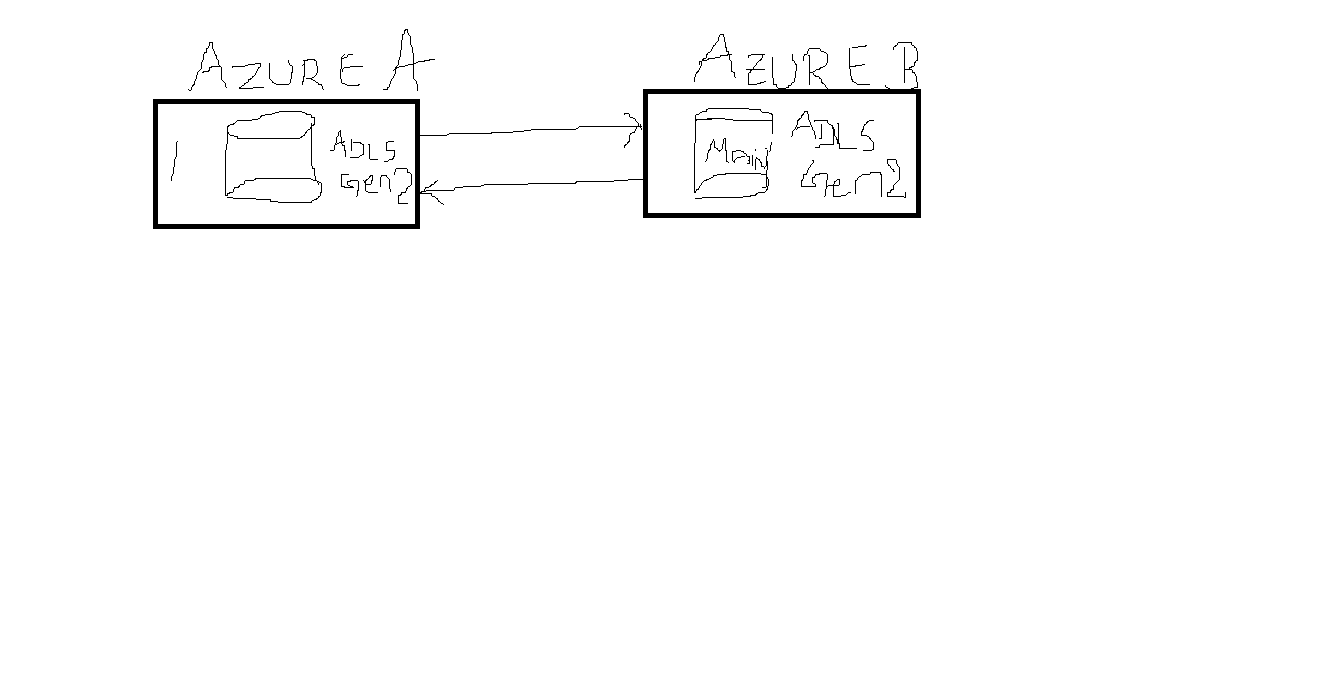
This is a common production pattern. Below I’ll give you a clear, practical end-to-end plan
(architecture + production best practices) for sharing live Delta tables from Azure A (provider) to Azure B
(recipient) using Unity Catalog + Delta Sharing, and how to keep Azure B’s copy up to date
incrementally (MERGE, Change Data Feed, etc.).
I’ll first outline the architecture and prerequisites, then a step-by-step implementation,
followed by production hardening and monitoring.
1) Architecture & design choices (high level)
Provider (Azure A): owns the source Delta tables (canonical data) in Unity Catalog.
Creates a Share that exposes selected tables/views to recipients via Delta Sharing. Provider remains authoritative.
Recipient (Azure B): consumes the shared tables. Recipients can read the provider’s tables live (read-only),
or copy into local tables and apply incremental updates (MERGE/CDC) to maintain a local, query-optimized store.
Databricks-to-Databricks sharing with Unity Catalog lets a recipient on a Unity Catalog-enabled workspace read
the provider’s shared data without copying underlying files.
Incremental strategy options (choose one based on use case):
1. Direct read (no copy) — B queries provider table directly. No incremental job required; always reads latest. Good if B just needs reads and latency is acceptable.
2. Pull + MERGE (recommended if B needs local table / joins / performance) — B periodically reads new/changed rows from provider and MERGE INTO into local Delta tables. Use a robust CDC mechanism for the diff: Delta Change Data Feed (CDF) or provider-provided staging delta of changes.
3. Provider pushes updates — Provider computes and places delta/staging table in share; recipient just applies. (Similar to 2, but pushes responsibility to Provider.)
2) Prerequisites & permissions
Both workspaces must be Unity Catalog enabled (metastore). Provider workspace must have Unity Catalog and be able to create shares. Recipient should be a Unity Catalog-enabled workspace (or an external recipient if needed).
Provider: CREATE SHARE privilege or metastore admin. Recipient: USE SHARE granted.
Networking: ensure any private endpoints / VNet peering and storage firewall rules allow the Databricks managed sharing endpoints (if you use private networking).
Decide on authentication method for the recipient: Databricks-to-Databricks Delta Sharing uses Unity Catalog-based recipients (no separate storage credentials required).
3) Step-by-step implementation (Provider = Azure A, Recipient = Azure B)
On Azure A (Provider)
- Enable Unity Catalog (if not already). Create/assign metastore and attach workspace.
- Prepare canonical Delta table(s) in a UC catalog + schema
- Create a share and add the tables you want to share
- Create a recipient (if databricks-to-databricks): either create recipient object or let the recipient request access and you approve. You can set it to a particular workspace or external identity. See docs for exact steps.
- Grant the recipient USE on the share (or accept their request). The recipient will receive access to the live table metadata and data through Delta Sharing.
On Azure B (Recipient)
- Connect to the provider share (Catalog Explorer → Delta Sharing → Add provider or accept provider invite). This mounts the provider share as a read-only catalog and you can query as a table.
4) Implementing Incremental Load (recommended: CDF + MERGE)
I recommend Change Data Feed (CDF) on the provider table + scheduled job on recipient that reads
the CDF since a version/time and then MERGE into the local table. This gives accurate row-level inserts/updates/deletes.
Typical flow
- Provider enables CDF on the canonical table. (done on Azure A.)
- Recipient job keeps track of last_processed_version or last_processed_timestamp for each shared table.
- On each run the recipient reads changes from the provider share using table_changes(table => 'provider_catalog.schema.table',
start_version=X) or table_changes(table => ..., start_timestamp=...) (Databricks CDF APIs / SQL functions),
or by reading _change_type via VERSION AS OF / querying the CDF view. Then perform a MERGE INTO into the local target.
5) Production hardening & best practices.
- Primary key / dedupe logic: ensure stable unique keys (surrogate or natural) so MERGE can be deterministic.
- Idempotency: design MERGE to be idempotent. Keep last_processed_version and do retries safely. Avoid relying solely on timestamps if clocks differ. Prefer Delta table versions.
- Small target partitions: co-locate keys to avoid large merges scanning entire table. Use partition pruning where possible. See Delta best practices for speeding MERGE.
- Optimize & ZORDER after large merges for read performance.
- Schema evolution: enable controlled MERGE schema evolution or handle with separate migration jobs. Keep producer and consumer schema compatibility stable.
- Handle deletes: CDF exposes deletes as change type delete. Ensure MERGE includes delete logic or soft-delete flags.
- Batch size & concurrency: tune how many versions you process per run. Very large change batches should be split. Avoid overlapping runs by using job locks.
- Security & governance: Use Unity Catalog privileges, audit logs, and grant least privilege on shares. Monitor who the recipient is and what tables are shared.
- Backfill / cutover: For initial load, copy full snapshot to recipient local table and record the version you started from. Then use CDF from that version+1 onward.
- Monitoring & alerting: Instrument job success/failure, row counts, lag (version/time), and reconcile counts against provider. Add SLA alerts.
- Testing: unit tests for merge logic, integration tests with small synthetic data, chaos tests for incomplete writes, and DR tests for table restores (Time Travel).
6) Operational checklist before going live
- Unity Catalog enabled on both workspaces.
- Provider share created and recipient granted.
- CDF enabled on source tables (if using CDF).
- Last_processed_version/timestamp persisted in a durable table per consumer job.
- MERGE job implemented, idempotent, and tested (unit + integration).
- Job scheduling (Databricks Jobs / Airflow / ADF) with retries and locks.
- Monitoring, alerting, and cost estimates validated.
- Security review (Unity Catalog privileges, network controls).
7) Helpful links (official docs)
Set up Delta Sharing (Azure Databricks provider): Microsoft Learn.
https://learn.microsoft.com/en-us/azure/databricks/delta-sharing/set-up
Create/manage recipients for Delta Sharing (Unity Catalog): Microsoft Learn.
https://learn.microsoft.com/en-us/azure/databricks/delta-sharing/create-recipient
Databricks-to-Databricks Delta Sharing overview (how recipient reads shared tables).
https://docs.databricks.com/aws/en/delta-sharing/share-data-databricks
Delta Lake Change Data Feed (CDF) documentation.
https://docs.databricks.com/aws/en/delta/delta-change-data-feed
MERGE INTO (Delta Lake upsert) docs and best practices.
https://docs.databricks.com/aws/en/delta/merge?utm_source
- Mark as New
- Bookmark
- Subscribe
- Mute
- Subscribe to RSS Feed
- Permalink
- Report Inappropriate Content
08-13-2025 02:29 AM
@lingareddy_Alva :Thanks a lot . Will this solution also work when Provider and Recipient have different accounnt.
Kindly suggest.
- Mark as New
- Bookmark
- Subscribe
- Mute
- Subscribe to RSS Feed
- Permalink
- Report Inappropriate Content
08-13-2025 05:49 AM
Yes, the Unity Catalog + Delta Sharing approach I outlined works even if the provider and recipient are in completely different Azure accounts (or even different clouds),
as long as a below few conditions are met :
1. Unity Catalog Enabled in Both Workspaces
2. Share & Recipient Configuration
3. Networking & Firewall Rules
4. Permissions
5. Data Format & Features
6. Supported Regions

- Mark as New
- Bookmark
- Subscribe
- Mute
- Subscribe to RSS Feed
- Permalink
- Report Inappropriate Content
08-14-2025 02:02 AM
This works well when set up, If you're securely set up in Azure you will need to grant a privatelink to the underlying storage for their service to read data. For enhanced security I'd recommend your catalog for the other party then be in external storage to segregate them