Selenium chrome driver on databricks driver On the databricks community, I see repeated problems regarding the selenium installation on the databricks...

- Mark as New
- Bookmark
- Subscribe
- Mute
- Subscribe to RSS Feed
- Permalink
- Report Inappropriate Content
11-09-2022 06:12 AM
Selenium chrome driver on databricks driver
On the databricks community, I see repeated problems regarding the selenium installation on the databricks driver. Installing selenium on databricks can be surprising, but for example, sometimes we need to grab some datasets behind fancy authentication, and selenium is the most accessible tool to do that. Of course, always remember to check the most uncomplicated alternatives first. For example, if we need to download an HTML file, we can use SparkContext.addFile() or just use the requests library. If we need to parse HTML without simulating user actions or downloading complicated pages, we can use BeautifulSoap. Please remember that selenium is running on the driver only (workers are not utilized), so just for the selenium part single node cluster is the preferred setting.
Installation
The easiest solution is to use apt-get to install ubuntu packages, but often version in the ubuntu repo is outdated. Recently that solution stopped working for me, and I decided to take a different approach and to get the driver and binaries from chromium-browser-snapshots https://commondatastorage.googleapis.com/chromium-browser-snapshots/index.html Below script download the newest version of browser binaries and driver. Everything is saved to /tmp/chrome directory. We must also set the chrome home directory to /tmp/chrome/chrome-user-data-dir. Sometimes, chromium complains about missing libraries. That's why we also install libgbm-dev. The below script will create a bash file implementing mentioned steps.
dbutils.fs.mkdirs("dbfs:/databricks/scripts/")
dbutils.fs.put("/databricks/scripts/selenium-install.sh","""
#!/bin/bash
%sh
LAST_VERSION="https://www.googleapis.com/download/storage/v1/b/chromium-browser-snapshots/o/Linux_x64%2FLAST_CHANGE?alt=media"
VERSION=$(curl -s -S $LAST_VERSION)
if [ -d $VERSION ] ; then
  echo "version already installed"
  exit
fi

rm -rf /tmp/chrome/$VERSION
mkdir -p /tmp/chrome/$VERSION

URL="https://www.googleapis.com/download/storage/v1/b/chromium-browser-snapshots/o/Linux_x64%2F$VERSION%2Fchrome-linux.zip?alt=media"
ZIP="${VERSION}-chrome-linux.zip"

curl -# $URL > /tmp/chrome/$ZIP
unzip /tmp/chrome/$ZIP -d /tmp/chrome/$VERSION

URL="https://www.googleapis.com/download/storage/v1/b/chromium-browser-snapshots/o/Linux_x64%2F$VERSION%2Fchromedriver_linux64.zip?alt=media"
ZIP="${VERSION}-chromedriver_linux64.zip"

curl -# $URL > /tmp/chrome/$ZIP
unzip /tmp/chrome/$ZIP -d /tmp/chrome/$VERSION

mkdir -p /tmp/chrome/chrome-user-data-dir

rm -f /tmp/chrome/latest
ln -s /tmp/chrome/$VERSION /tmp/chrome/latest

# to avoid errors about missing libraries
sudo apt-get update
sudo apt-get install -y libgbm-dev
""", True)
display(dbutils.fs.ls("dbfs:/databricks/scripts/"))
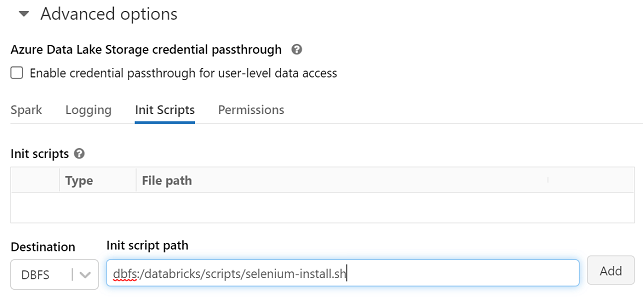
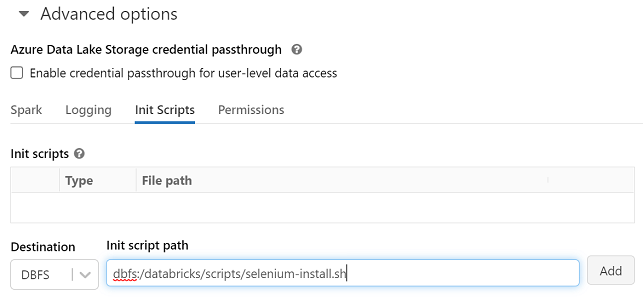
The script was saved to DBFS storage as /dbfs/databricks/scripts/selenium-install.sh We can set it as an init script for the server. Click your cluster in "compute" -> click "Edit" -> "configuration" tab -> scroll down to "Advanced options" -> click "Init Scripts" -> select "DBFS" and set "Init script path" as "/dbfs/databricks/scripts/selenium-install.sh" -> click "add".
%sh
/dbfs/databricks/scripts/selenium-install.sh
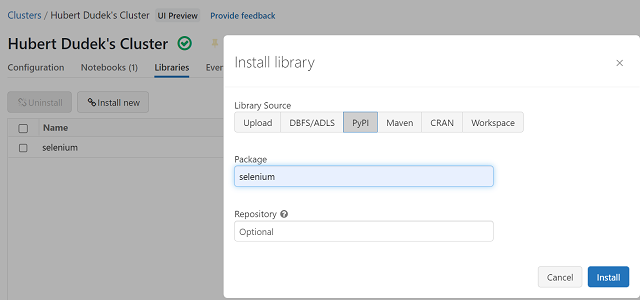
Now we can install selenium. Click your cluster in "compute" -> click "Libraries" -> click "Install new" -> click "PyPI" -> set "Package" as "selenium" -> click "install".
%pip install seleniumSo let's start webdriver. We can see that Service and binary_location point to driver and binaries, which were downloaded and unpacked by our script.
from selenium import webdriver
from selenium.webdriver.chrome.service import Service
s = Service('/tmp/chrome/latest/chromedriver_linux64/chromedriver')
options = webdriver.ChromeOptions()
options.binary_location = "/tmp/chrome/latest/chrome-linux/chrome"
options.add_argument('headless')
options.add_argument('--disable-infobars')
options.add_argument('--disable-dev-shm-usage')
options.add_argument('--no-sandbox')
options.add_argument('--remote-debugging-port=9222')
options.add_argument('--homedir=/tmp/chrome/chrome-user-data-dir')
options.add_argument('--user-data-dir=/tmp/chrome/chrome-user-data-dir')
prefs = {"download.default_directory":"/tmp/chrome/chrome-user-data-di",
         "download.prompt_for_download":False
}
options.add_experimental_option("prefs",prefs)
driver = webdriver.Chrome(service=s, options=options)
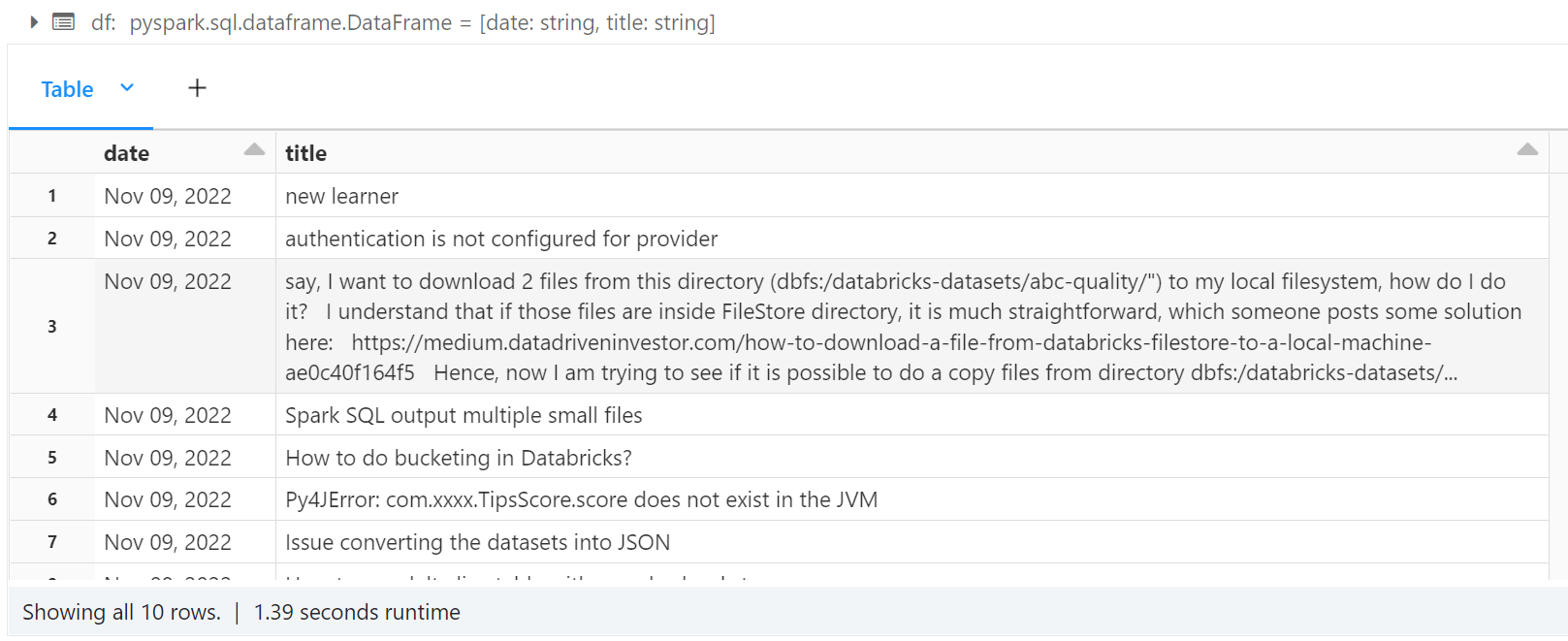
Let's test webdriver. We will take the last posts from the databricks community and convert them to a dataframe.
from selenium.webdriver.common.by import By
from selenium.webdriver.support.ui import WebDriverWait
from selenium.webdriver.support import expected_conditions as EC
driver.execute("get", {'url': 'https://community.databricks.com/s/discussions?page=1&filter=All'})
date = [elem.text for elem in WebDriverWait(driver, 20).until(EC.visibility_of_all_elements_located((By.CSS_SELECTOR, "lightning-formatted-date-time")))]
title = [elem.text for elem in WebDriverWait(driver, 20).until(EC.visibility_of_all_elements_located((By.CSS_SELECTOR, "p[class='Sub-heaading1']")))]
from pyspark.sql.types import StringType, StructType, StructField
schema = StructType([
StructField("date", StringType()),
StructField("title", StringType())
])
df = spark.createDataFrame(list(zip(date, title)), schema=schema)
display(df)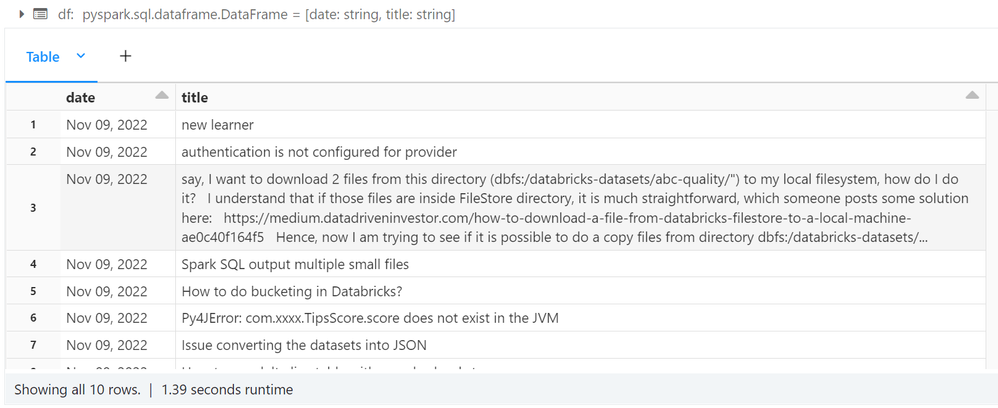
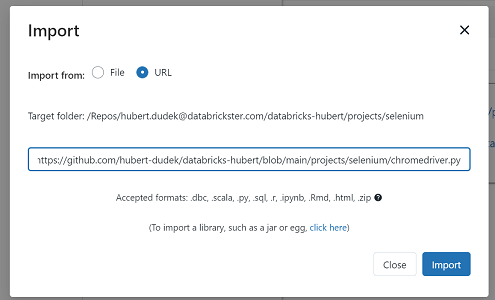
driver.quit()The version of that article as ready to-run notebook is available at: https://github.com/hubert-dudek/databricks-hubert/blob/main/projects/selenium/chromedriver.py
To import that notebook into databricks, go to the folder in your "workplace" -> from the arrow menu, select "URL" -> click "import" -> put https://raw.githubusercontent.com/hubert-dudek/databricks-hubert/main/projects/selenium/chromedriver... as URL.
My blog: https://databrickster.medium.com/
- Labels:
-
Selenium