Introduction
Cloud-native data platforms like Azure Databricks are powerful because they abstract away infrastructure so you can focus on data engineering, analytics, and ML workloads. However, there are situations where you may run into issues that require advanced troubleshooting. You might also want to install additional software on your cluster - or simply peek under the hood. That’s where SSH access to your cluster’s Spark driver node becomes a valuable tool.
What Does “SSH to the Driver Node” Mean?
In an Apache Spark cluster, whether on Databricks or elsewhere, there’s a driver node and one or more worker nodes.
- The driver node orchestrates the execution of distributed jobs - it’s where your SparkContext lives and where your notebooks or jobs initially run.
- The worker nodes execute the distributed tasks assigned by the driver.
SSH - secure shell - is a protocol normally used to access remote machines. In Databricks, it allows you to securely connect directly to the driver node VM in your Azure environment for troubleshooting or maintenance.
Why this can be useful?
Here are a few reasons why being able to SSH into the driver can be more than just a nice trick:
Troubleshooting and advanced debugging
One of the most practical reasons to SSH into a Databricks driver node is network troubleshooting - especially in locked-down Azure environments, where connectivity issues are common and often difficult to diagnose using Spark logs alone.
For example, by SSH-ing into the driver node, an engineer can install a lightweight tool such as nmap (which is not installed by default as you can see in below screenshot) to test network reachability and open ports. (as you can see on below screenshot - by default nmap is not available on driver node).
Similarly, you might want to monitor, in real time, which processes are consuming the most resources on the driver using a tool like htop. This is not possible from a notebook, because a notebook command only captures the state of processes at the moment of execution - it does not provide a continuously updating view.
To observe processes in real time, SSH access to the driver node is required.
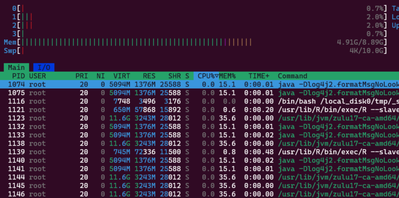
Monitoring processes in real-time using htop
Installing Custom Tools or Debugging Utilities
While Databricks runtimes include many built-in features, they are still managed environments. When something goes wrong at the infrastructure or operating system level, traditional Spark diagnostics may not be enough. SSH access allows engineers to temporarily install and run additional utilities directly on the driver node to gain deeper insight into what’s happening.
These tools can help with tasks such as:
- Inspecting running processes and resource consumption
- Analyzing network connectivity and port availability
- Verifying system configuration, libraries, or environment variables
- Observing real-time behavior during job execution
SSH lets you install or run these tools directly on the driver node for short-term analysis or troubleshooting - something you simply can’t do from a notebook alone.
Demo
There are some prerequisite that needs to be met to be able to log in to driver node using SSH. SSH access is only supported when
- Databricks workspace is deployed using VNet injection.
- Subnet used by the Databricks cluster must allow inbound SSH traffic to the driver node.
- SSH access requires key-based authentication.
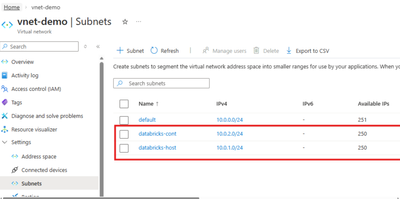
1. Create VNet with 2 required subnets
As a first step, we need to create a VNET with the two required subnets delegated to Microsoft.Databricks/workspaces
2. Deploy VNet Injected Databricks Workspace
Next, let's deploye an Azure Databricks workspace with the “Deploy Azure Databricks workspace in your own Virtual Network (VNet)” option selected.
3. Add Inbound rule to NSG associated with Databricks subnet
As the final step, we need to update the network security group (NSG) that was automatically created during the Databricks deployment to allow inbound traffic. The NSG associated with your VNet must allow inbound SSH traffic. The default port for SSH in Databricks is 2200.
Note: The setup shown below is for demo purposes only, so I’m allowing SSH access from any source.
4. Generate SSH Key-Pair
Let's generate generate ssh key-pair using following command:
ssh-keygen -t rsa -b 4096 -C
5. Configure a new cluster with your public key
Now we need to copy the entire contents of the public key file and paste it into Public key field :
6. SSH into driver
Run the following command, replacing the hostname and private key file path
ssh ubuntu@<hostname> -p 2200 -i <private-key-file-path>
Once we're inside, we can install Nmap, as I promised at the beginning of the article
sudo apt-get update
sudo apt-get install -y nmap
After the installation, let's verify that it’s now available on our driver node by executing a small test:
Conclusion
SSH access to the Azure Databricks driver node is a powerful tool in your toolkit. It’s not something you’ll use every day, but when you really need visibility into the underlying system, it can save hours of guesswork and help resolve tricky problems quickly.
If you’re running Databricks in a secure VNet and manage your network settings, enabling SSH access - even just for occasional use - can significantly strengthen your diagnostic and troubleshooting capabilities.


