



Turn on suggestions
Auto-suggest helps you quickly narrow down your search results by suggesting possible matches as you type.
Showing results for
Technical Blog
Explore in-depth articles, tutorials, and insights on data analytics and machine learning in the Databricks Technical Blog. Stay updated on industry trends, best practices, and advanced techniques.
Turn on suggestions
Auto-suggest helps you quickly narrow down your search results by suggesting possible matches as you type.
Showing results for
- Databricks Community
- Technical Blog
- From HMS to Unity Catalog: A Self-Service Migratio...

Databricks Employee
Options
- Subscribe to RSS Feed
- Mark as New
- Mark as Read
- Bookmark
- Subscribe
- Printer Friendly Page
- Report Inappropriate Content
04-23-2026
01:15 PM
Introduction - Unity Catalog Migration
Most organizations running Databricks today started with the Hive Metastore (HMS); it was the default, it worked, and there was no reason to change. But as data teams grow, so do the challenges: workspace-level silos, inconsistent access controls, no centralized audit trail, and limited visibility into who's accessing what data and where it came from.
Unity Catalog was built to solve these problems: a single governance layer across all workspaces, with fine-grained access control, data lineage, and centralized auditing out of the box. The question isn't whether to migrate, but how to do it with minimal disruption and maximum confidence.
This guide walks you through the end-to-end process of migrating from Hive Metastore to Unity Catalog: from assessing your current state to cutting over production workloads. It's designed for data engineers and platform administrators who want to self-serve the migration rather than wait for someone else to do it.
What you'll get from this guide:
- A clear framework for deciding when and how to migrate.
- Practical steps for inventory, planning, execution, and validation.
- Tool recommendations (UCX, Catalog Explorer, Genie Code) for automating the heavy lifting.
- Best practices drawn from real-world migrations across organizations of all sizes.
Who this is for:
- Data engineers managing tables and pipelines on Hive Metastore.
- Platform administrators responsible for governance and security.
- Data teams evaluating Unity Catalog adoption for the first time.
Why Migrate to Unity Catalog
As data teams grow and governance requirements tighten, the limitations of the Hive Metastore become impossible to ignore: governance is siloed at the workspace level, access controls are coarse and inconsistent, there is no built-in lineage to trace the impact of changes, and auditing who accessed what requires manual effort. Unity Catalog was built to address these gaps head-on: a single governance layer across your entire Databricks estate that transforms governance from a manual, workspace-by-workspace effort into a centralized, scalable foundation that grows with your organization.
What do you gain?
Unity Catalog brings a unified governance layer across your entire Databricks estate. Here's what it unlocks:
- Centralized governance
- Data discovery
- Fine-grained access control
- Data quality monitoring
- Automatic lineage
- Full audit trail
- Data classification
- Data sharing
But what is the real cost of not migrating?
Staying on Hive Metastore isn't just about missing new features; it's an active risk that compounds over time. Without centralized governance, you lose visibility into who has access to what. Without lineage, a single schema change can silently break downstream pipelines, dashboards, and models with no way to trace the impact. Compliance becomes a manual exercise, no column masking, no automated classification, no audit trail. Teams duplicate data because they can't discover what already exists. And as Databricks continues to build its roadmap on Unity Catalog: AI/BI, Lakeflow Connect, Model Serving, Vector Search, Lakebase, staying on HMS increasingly means being left behind. Additionally, starting September 30, 2026, all new Databricks workspaces will be provisioned as Unity Catalog-only, without access to DBFS root, DBFS mounts, Hive Metastore, or no-isolation shared clusters. The transition is not a question of if, but when. Every new table and pipeline you create today on HMS is one more thing you'll have to migrate tomorrow.
How does an actual migration look?
At a high level, migrating to Unity Catalog involves moving away from the legacy workspace-level Hive Metastore (HMS) and its corresponding data assets, to adopting a centralized governance structure. Depending on your HMS table types, more or less data movement might be needed. We will touch on this later.
Beyond the data assets themselves, migration also entails:
- Moving from workspace-level groups to account-level groups.
- Adopting Unity Catalog-compatible compute (DBR 14.3 LTS+ and compatible access modes).
- Replacing legacy cloud data access patterns (mount points, Spark configs, credential passthrough) with External Locations and Volumes.
- Updating your workflows to target Unity Catalog instead of the legacy HMS.
The scope of work depends on the size and complexity of your environment, which is exactly why a proper assessment is the recommended starting point.
There are several tools and approaches available to help with your migration, ranging from manual SQL commands to the Upgrade Wizard in Catalog Explorer to open-source automation like UCX. The steps below outline the process regardless of which tooling you choose. Where applicable, we highlight how specific tools can help automate parts of the process.
Unity Catalog Migration Steps
(Optional but highly recommended) Before actually working on the migration steps, it’s a good idea to assess your current environment. The first step in any migration is understanding what you have: how many tables, their types, where they are stored, which clusters and jobs exist, and which legacy patterns are in use. This scoping exercise will serve as your source of truth for planning the migration. The recommended tool for this is UCX, an open-source toolkit from Databricks Labs that automates the assessment and can also help with parts of the migration itself. If you prefer not to use UCX, you can manually inventory your HMS assets using Catalog Explorer, information_schema queries, or the Databricks CLI.
Disclaimer: UCX is a Databricks Labs project provided "AS-IS". Any issues discovered through its use should be filed as GitHub Issues on the Repo. They will be reviewed as time permits, but there are no formal SLAs for support.
UCX installation considerations:
- UCX is normally installed in a single workspace, but you can install it in multiple workspaces by following the steps here.
- Installs a small “toolkit” into the targeted workspace, including an inventory database to be used later, a series of workflows prefixed with [UCX] that are all optional to run, some dashboards for the output of the workflows, UCX library/wheels, and supporting configs used by the UCX workflows.
- Nothing breaks, changes, or gets run in the workspace, as noted above; it just installs a series of tools that can help with the migration process. So UCX is completely safe to install and will not produce any disruptions at all.
- If you have an External Hive Metastore (Such as AWS Glue), UCX can also be installed in an external HMS.
What is the actual role of UCX in the migration process?:
- Serve as an inventory tool to list all workspace assets (including tables, views, clusters, jobs, etc) and evaluate their Unity Catalog compatibility. This is done by running the UCX Assessment Workflow.
-
Potentially help with automation of the migration process by running some of the optional workflows (Such as the group migration workflow and the table migration workflow) or commands (As an example, you can run commands for creating external locations from S3 buckets detected with the UCX Assessment Workflow). This is a great blog for understanding all of UCX automation options and how to use them to automate the migration process.
After running the assessment workflow, the results are populated under the [UCX] Assessment Main dashboard. You can run the EXPORT_ASSESSMENT_TO_EXCEL notebook (Under Workspace -> Apps -> UCX folder) to export the dashboard output as a CSV file, which is a better way to check the results breakdown by data asset (Tables, views, clusters, etc.).
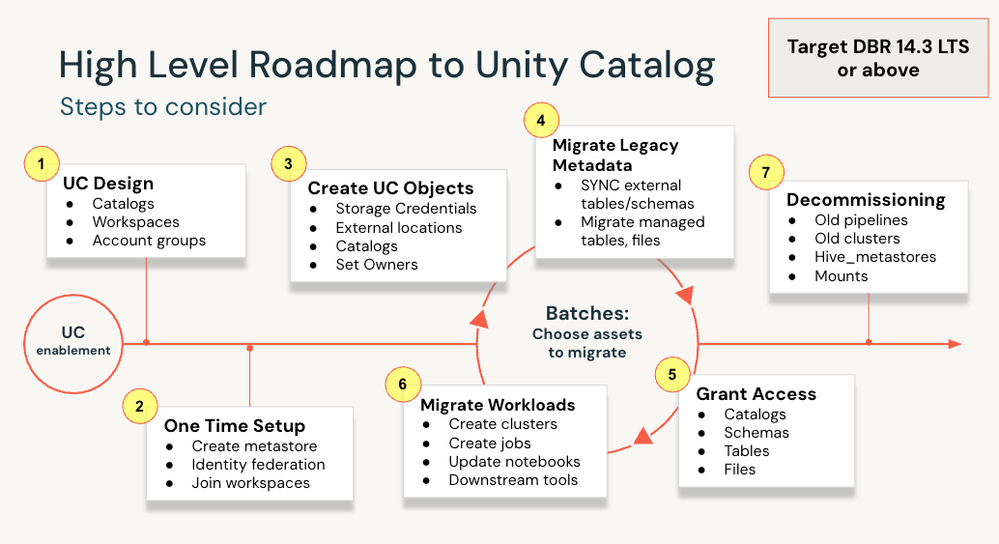
Irrespective of whether you choose to use UCX for your migration, in general, the migration steps are as follows:
- Design and set up your Unity Catalog Structure: Define your catalog design (e.g., development, staging, production catalogs) and how you want to assign them to your different workspaces. This step is merely conceptual. See best practices here.
- Create a metastore (One per region) and attach it to your different workspaces. This will enable Unity Catalog in the workspaces. This doesn’t mean you've fully adopted Unity Catalog; most likely, your HMS assets and current pipelines aren't backed by UC just yet. UCX can help assess that. As a general recommendation, do not assign metastore-level managed storage.
- Create the UC Objects (external locations, catalogs/schemas, etc) to which you will migrate your Hive Metastore data assets. Remember, we recommend that you assign a separate managed storage location per catalog to achieve proper physical isolation. Never reuse DBFS root buckets for Unity Catalog-managed storage. File path-based access to those buckets bypasses UC governance entirely.
- Proceed with the HMS Assets migration: Once you have your Unity Catalog destination objects (Catalogs/Schemas), we can start migrating your legacy assets:
- For HMS table migration, the approach will depend on different variables (table type, data type, storage location, etc), but essentially, there are two main scenarios (See a more detailed explanation of the different migration approaches and when to use them in the How to upgrade your Hive tables to Unity Catalog blog)
- If the HMS tables data is stored on DBFS root (The workspace default storage location), data replication is needed to move it away from that location (By using either a CLONE or a CTAS command), as DBFS is accessible to all workspace users and bypasses the UC governance model.
-
If the HMS tables data is outside the DBFS root and already in cloud object storage, you can just run a SYNC command and register the data under UC; no data replication is needed.
- Note: If you want to migrate to Managed Tables (Recommended), irrespective of the table type, data replication is needed to move the data to the Unity Catalog managed storage location (By using either a CLONE or a CTAS command).
- The different options for migrating the tables are the following:
- Manual Approach: You can create your own notebook that iterates through your different databases and migrates the tables (HINT: Use Genie Code for getting help with this 🙂). The approaches are:
- CTAS or CLONE(Data duplication involved): The go-to options for migrating to UC Managed Tables. There is data duplication involved. Works for both data stored in DBFS and data on external storage that we want to move to UC-managed storage. The main difference is that CTAS moves only the data, and CLONE moves both the data and the metadata. As a general rule, prefer CLONE for Delta tables as it preserves table properties, constraints, and partitioning; use CTAS for non-Delta tables or when you want a clean start with a new table definition. Note that with either approach, Delta Lake time-travel history is not preserved on the new UC tables; they are treated as new tables for time-travel purposes.
CREATE OR REPLACE TABLE <uc-catalog>.<uc-schema>.<new-table>
DEEP CLONE hive_metastore.<source-schema>.<source-table>;
CREATE TABLE <uc-catalog>.<new-schema>.<new-table> AS SELECT * FROM hive_metastore.<source-schema>.<source-table>; - SYNC command (No data duplication involved): There is no data movement involved. You are just registering the existing data under Unity Catalog. Both the HMS table and the new UC table are pointing to the same location. Does not work for data stored in DBFS.
SYNC TABLE <uc-catalog>.<uc-schema>.<new-table> FROM hive_metastore.<source-schema>.<source-table>
SET OWNER <principal>;
- CTAS or CLONE(Data duplication involved): The go-to options for migrating to UC Managed Tables. There is data duplication involved. Works for both data stored in DBFS and data on external storage that we want to move to UC-managed storage. The main difference is that CTAS moves only the data, and CLONE moves both the data and the metadata. As a general rule, prefer CLONE for Delta tables as it preserves table properties, constraints, and partitioning; use CTAS for non-Delta tables or when you want a clean start with a new table definition. Note that with either approach, Delta Lake time-travel history is not preserved on the new UC tables; they are treated as new tables for time-travel purposes.
- Upgrade Wizard (External Tables creation only): The upgrade wizard allows you to copy complete schemas (databases) and multiple external or managed tables from your Databricks default Hive metastore to the Unity Catalog metastore using the Catalog Explorer.
- UCX Table Migration Workflow: The table migration workflow is an optional UCX workflow that helps automate the upgrade of tables from the Hive metastore to the Unity Catalog metastore.
- Manual Approach: You can create your own notebook that iterates through your different databases and migrates the tables (HINT: Use Genie Code for getting help with this 🙂). The approaches are:
- If the HMS tables data is stored on DBFS root (The workspace default storage location), data replication is needed to move it away from that location (By using either a CLONE or a CTAS command), as DBFS is accessible to all workspace users and bypasses the UC governance model.
- For HMS views migration, after you upgrade all of a view's referenced tables to the same Unity Catalog metastore, you can create a new view that references the new tables. The table migration workflow explained above can also automate this step.
- For HMS table migration, the approach will depend on different variables (table type, data type, storage location, etc), but essentially, there are two main scenarios (See a more detailed explanation of the different migration approaches and when to use them in the How to upgrade your Hive tables to Unity Catalog blog)
- Grant Access: Grant identities the corresponding access to the newly created catalogs, schemas, and tables. We recommend leveraging Terraform to automate this process using infrastructure-as-code and to have a single, replicable source of truth for Unity Catalog grants.
- Migrate your workloads: This step covers everything beyond data assets: upgrading your compute, addressing legacy access patterns, and updating your jobs, pipelines, and notebooks to target Unity Catalog.
- Legacy Classic and Job Cluster migration: You should upgrade your cluster to UC-compatible DBR versions and UC-compatible access modes (Standard or Dedicated). This quick product tour showcases how to upgrade to classic compute. This one shows how to upgrade clusters for jobs. Some important points here:
- Target DBR 14.3 LTS as the minimum runtime version, as it supports most essential UC features.
- Be aware of Standard (shared) access mode limitations before migrating code: no RDD APIs, no ML runtime support, no SparkContext (sc), and some UDF restrictions. If your workloads depend on these, plan for Dedicated access mode.
- Other legacy patterns:
Legacy Pattern Unity Catalog Approach Supporting resources/documentation Using instance profile/credential passthrough or Spark configs for connecting to Cloud Storage Unity Catalog accesses cloud storage via External Locations. This is more secure, as access is not done at the cluster level, but instead uses Unity Catalog securable objects. Storage Credentials + External Locations. Using DBFS Mount Points Unity Catalog alternative for working with files in cloud storage is Volumes.
How to migrate from mount points to Unity Catalog Volumes Workspace-Level Groups Unity Catalog centralizes everything, including identity management. You must migrate your Workspace-level groups to Account-level groups. Automation via the Group Migration Workflow Other legacy patterns in the UCX Assessment Workflow? There might be other legacy patterns found by UCX. Go to the Assessment Finding Index to get more information about the recommended actions.
Assessment Finding Index Workspace-level SCIM Unity Catalog manages identity in a centralized way at the account level. Ensure identity provisioning is configured at the account level, not the workspace level. On Azure, consider adopting Account Identity Management (AIM) over SCIM, as it supports nested groups and automatic service principal syncing from Entra ID. On AWS and GCP, account-level SCIM remains the recommended approach. Workspace-level to Account-level SCIM migration
Model Serving Mosaic AI Model Serving Switch your models to the Mosaic AI Model Serving experience
- Migrate your jobs/pipelines/notebooks: In this step, you actually migrate your jobs/pipelines/notebooks to target the newly created UC catalog, schemas, and tables. This means updating the code to use your UC tables instead of HMS tables (Moving from the two-level namespace of schema.table to the three-level namespace of catalog.schema.table). Also includes changing your mount points references to use volumes instead. To do this, you have these different options:
- Use Genie Code to update a deprecated table reference: Take advantage of Genie Code to automate the update. Genie Code has advanced table search capabilities that can find the equivalent Unity Catalog table even if you don't know where in your catalog it is.
- You can use the USE <CATALOG> command to keep using the legacy two-level namespace and point to the new catalog. This is particularly useful if all your workloads point to the same catalog and the schema names are identical between the HMS and UC.
- Important considerations in this step are:
- When you enable the Unity Catalog by attaching a metastore to the workspace, nothing breaks; all of your jobs/pipelines continue working as always. The reason for that is that the HMS just becomes another catalog (A legacy one, of course) and becomes your default catalog. When you use the two-level namespace schema.table, as you do in your legacy notebooks, you don’t specify a catalog, so it defaults to the HMS. That’s what allows enabling UC and the concept of catalogs without disrupting anything.
- This is an iterative process (See image above), meaning that while you migrate your assets, your existing workloads continue to work on top of the HMS. For example, you clone an existing job, update the code to use UC, and then, after confirming everything works as expected, you deprecate the old job.
- If your jobs are full refreshes on HMS tables by nature, you can skip migrating the data from those tables and just point the workloads to newly created empty UC tables. If your workloads consist of incremental refreshes to existing HMS tables, migrate the tables and data first and then point the code toward the migrated tables.
- Plan to migrate/update the workloads during times when your jobs/pipelines are not actively running to ensure there is no data loss in the transition. Jobs might fail during this transition, so plan accordingly.
- For more complex environments, consider HMS Federation as a transitional approach. Federation lets you register your existing Hive Metastore as a foreign catalog in Unity Catalog, enabling workloads to query HMS tables via the UC namespace without first migrating them. This enables coexistence during the transition, minimizes code changes, and immediately unlocks Unity Catalog governance features like fine-grained access control, lineage tracking, and centralized auditing on your existing HMS tables. However, federation should not be considered a permanent solution; foreign tables do not support key UC features like predictive optimization, Vector Search, Delta Sharing, and data quality monitoring. See the HMS Federation documentation for more details.
- Once all workloads have been migrated, change the workspace's default catalog. By default, the Hive Metastore acts as the default catalog, which means any query using the two-level namespace (schema.table) without explicitly specifying a catalog will still read from and write to HMS. Changing the default catalog to your primary UC catalog prevents these unintended writes and reinforces Unity Catalog as the single path for all data operations. Make sure all workloads have been fully migrated and validated before making this change; any notebook or job still using two-level references that expect HMS tables will break if the default catalog changes underneath them.
- Legacy Classic and Job Cluster migration: You should upgrade your cluster to UC-compatible DBR versions and UC-compatible access modes (Standard or Dedicated). This quick product tour showcases how to upgrade to classic compute. This one shows how to upgrade clusters for jobs. Some important points here:
- Decommission old/legacy assets: Once you migrate your workloads, validate them and ensure they work as intended, pointing to your new UC assets, you can decommission all legacy assets (HMS tables/views, jobs, pipelines, mount points, spark configs, etc.). Optionally, before decommissioning, consider running the UCX Data Reconciliation Workflow to validate migration integrity; it compares schemas, row counts, and optionally row-level hashes between your source HMS tables and the target UC tables. Also, this is a great moment to disable the legacy Hive metastore.
Final Considerations / Recommendations
Every migration is different, but after working with countless customers across a wide range of environments and scenarios, clear patterns have emerged: practices that consistently lead to smooth migrations and mistakes that slow teams down. Here are the key recommendations we've gathered to help you move to Unity Catalog with confidence and minimal friction:
- Run the UCX Assessment Workflow as a starting point, even if you don't plan to use UCX for the actual migration. It gives you the most complete picture of what you're dealing with: table types, storage locations, cluster compatibility, permission structures, mount points, and more. Think of it as your source of truth for migration.
- Use the migration initial scoping as an opportunity to clean up unused/deprecated datasets/workloads. This will simplify the migration process and make your Databricks environment cleaner.
- Even if a full migration is not on your immediate roadmap, start pointing all new workloads to Unity Catalog now. Create new tables, views, and pipelines under your own defined catalogs instead of the default Hive Metastore. This is a low-risk, high-impact practice: your existing HMS workloads continue running without disruption, and over time, this naturally reduces your migration scope and accelerates your path to full Unity Catalog adoption.
- Start with a small POC to get comfortable with the migration process; for example, select a job/dataset and migrate it based on the guidance provided in this blog. This approach will also help better understand the effort required to migrate in terms of time and resources, as you can extrapolate the effort for the POC to the full set of legacy assets.
- Evaluate if updating your jobs, pipelines, and notebooks to point toward the UC catalog structure (Instead of HMS) does the trick without you having to actually migrate the target tables. If your workloads do full refreshes or keeping track of history is not important, this might be the simpler option.
- Migration doesn’t have to be a one-time effort. You can migrate in batches, focus on the most relevant databases/workloads first, and then progressively migrate the other ones based on the team's bandwidth and prioritization.
- Managed tables are the recommended long-term target as they unlock predictive optimization (auto-compaction, auto-clustering, auto-vacuum), intelligent file sizing, and faster metadata caching. However, for HMS tables that are already external, it is often easier to first migrate them as external UC tables. This avoids data movement, allows coexistence between HMS and UC, and is what UCX does by default. Once your workloads are stable on Unity Catalog, you can then convert those external tables to managed tables to take full advantage of UC capabilities.
- Focus first on the migration of External Tables and then focus on the migration of Managed Tables. This will minimize the time you have duplicated data (the period between the data migration and the redirection of jobs/pipelines to UC).
- Add deprecation comments to original Hive tables after migration: "This table is deprecated. Please use catalog.schema.table instead." This triggers strikethrough display in notebooks and provides Quick Fix links. See an example here.
- Plan workload cutover during maintenance windows when your jobs/pipelines are not actively running to avoid data loss or inconsistency during transition.
- Once all of your workloads are migrated and validated, change the default catalog for the workspace from the Hive Metastore to your primary UC catalog. This prevents unintended writes to the legacy HMS.
Next Steps/Call to action
The migration steps outlined in this guide provide a clear path forward. You do not need to tackle everything at once; start with an assessment to understand your current state, pick a manageable scope, and iterate from there. Each step you complete reduces your migration surface and moves you closer to a fully governed, Unity Catalog-powered environment. If you run into specific questions, blockers, or need guidance tailored to your environment, reach out to your Databricks account team. They can connect you with the right resources to help you move forward with confidence.
FAQ
- For UCX, is there any alternative to the local machine installation? If for some reason you have any restrictions for installing UCX locally via the CLI (Recommended and more efficient), you can setup UCX from a Databricks cluster web terminal.
- Does attaching a metastore to my workspace break anything? Not at all. You are enabling Unity Catalog and its features in the workspace; there is no direct impact on HMS, costs or workloads. Your legacy assets still need to be migrated and are not eligible for UC features.
- Is the UCX installation doing any migration? No. It just installs UCX utilities in the workspace (workflows, dashboards, etc). You still have to manually trigger the desired workflows.
- Is migration run at the workspace level? Yes, you must migrate every workspace individually. We suggest selecting a representative workspace and migrating it first. Then you can replicate the process for other workspaces. If you have a big number of workspaces, consider reaching out to your Databricks Account Team and discussing the possibility of involving a partner that handles the migration.
- Is the existing HMS going to be deprecated? No, HMS in existing workspaces is not going to be deprecated. It can live alongside Unity Catalog as another catalog, without the UC benefits and governance. That said, Databricks is clearly moving toward a Unity Catalog-only model. Starting September 2026, all new workspaces will be provisioned as UC-only. While existing workspaces are not affected today, migration is strongly encouraged.
- Can I migrate just a subset of my data? Yes, you can choose to focus only on a subset of the data (Specific schemas/tables) relevant to your use cases. You can even keep the HMS as is and create all your new workloads under Unity Catalog (Publishing to new catalogs/schemas and using UC-enabled clusters).
- How long does a typical migration take? It is difficult to say since this is based on the workspace size (Amount of HMS data assets, workloads, etc), table types, and storage location, among others. The best suggestion here is to run a small POC with one of your workloads, and based on how much time it takes, you can extrapolate an estimation for the remaining workloads.
- Do I need to migrate all workspaces at once? No, you can migrate one workspace at a time. We recommend starting with a representative workspace, building confidence with the process, and then replicating across the remaining ones.
- What happens to my existing HMS tables after migration? Your existing HMS tables remain exactly where they are; nothing is deleted or modified during migration. They continue to live under the Hive Metastore and remain fully accessible until you explicitly decide to deprecate them. During the migration period, you will have two references to your data: the original HMS table and the new UC table. Whether this means actual data duplication depends on the migration approach you chose. See more details on the following question.
- Is there data duplication involved? It depends on the migration approach. SYNC does not duplicate data; it registers the same underlying files under Unity Catalog. CLONE and CTAS create a copy of the data in the new location, resulting in duplication until you decommission the original HMS tables. See the table migration section above for details on when each approach applies. If you use UCX, the method is selected automatically based on your table types.
- Do I need UCX to migrate, or can I do it manually? UCX is highly recommended but optional. You can manually migrate using CLONE, CTAS, or SYNC commands directly, or use the Upgrade Wizard in Catalog Explorer for external tables. UCX adds value by automating the assessment, providing a complete inventory, and helping execute migrations at scale.
- Will my existing jobs/notebooks continue to work during migration? Yes, migration runs in parallel with your existing workloads. You deprecate those after validating your new workloads.
- Can I roll back after migrating? It depends on the migration approach you used. If you migrated tables using SYNC (no data movement), the original HMS tables were never modified, you can simply drop the UC table and continue using the HMS version as before. If you used CLONE or CTAS, the original HMS tables also remain untouched since these commands create a copy; you can revert by pointing your workloads back to the HMS tables and dropping the UC copies. In both cases, the original data is preserved as long as you have not decommissioned the HMS tables. The key takeaway: do not decommission your legacy assets until you have fully validated that your workloads are running correctly on Unity Catalog.
You must be a registered user to add a comment. If you've already registered, sign in. Otherwise, register and sign in.


Related Content
- Migrate your Dashboards to AI/BI with Genie Code in Technical Blog
- Databricks Performance Optimization: What Changed, What Still Matters, and What Should Be Automated in Community Articles
- 🌟 Community Pulse: Your Weekly Roundup! May 25 – 31, 2026 in Announcements
- Databricks Serverless Migration: A Practical Production Playbook in Technical Blog
- 🌟 Community Pulse: Your Weekly Roundup! April 20 – 26, 2026 in Announcements